- Open Add Repository → Publish a Folder in GitSync.md.
- Choose a local folder under On My iPhone and review which files to include.
- Set your commit author, repository name, and Private or Public visibility.
- Tap Prepare Local Commit, then Create Private Repository & Publish or its public equivalent.
- Open the new repository on GitHub to verify the files and first commit.
Start with the files already on your phone
A new project can start on your iPhone: an Obsidian vault, a folder of Markdown drafts, or a few files you want to share. Once you want version history and a copy on GitHub, you can turn that folder into a repository from GitSync.md.
The new Publish a Folder feature lets you choose the folder, review its contents, save your first commit, and create a GitHub repository. Your files stay in their original location, so you can keep editing them with the app you already use.
For this walkthrough, we’ll publish a local folder called MyNotes to a new repository named my-notes. You don’t need to create an empty repository on GitHub first or run Git commands in a terminal.
Choose what goes into Git.
This 45-second walkthrough shows choosing MyNotes in Files, excluding a personal journal, entering commit details, and switching between Private and Public.
Recorded in the iPhone simulator with sample files. This clip covers setup and review before GitHub sign-in. Follow steps 5 and 6 below to prepare your commit and publish.
What you’ll need
- GitSync.md with the Publish a Folder feature (get the app or check for updates).
- A GitHub account signed in to GitSync.md.
- A local folder containing at least one file, accessible through the Files picker under On My iPhone.
- An internet connection for creating the GitHub repository and uploading the commit.
Choose a folder in an app’s local storage, such as GitSync.md’s own folder or a local Obsidian vault. For example:
On My iPhone → Obsidian → MyNotesIf you’re starting from scratch, create a folder and save a file such as README.md into it with your editor. Git doesn’t store empty folders.
This flow creates a repository in your personal GitHub account. It currently supports local folders rather than iCloud Drive or other cloud file providers. A folder that already belongs to a Git repository should use Open Existing Repository instead.
Create your repository from iPhone
Open Publish a Folder
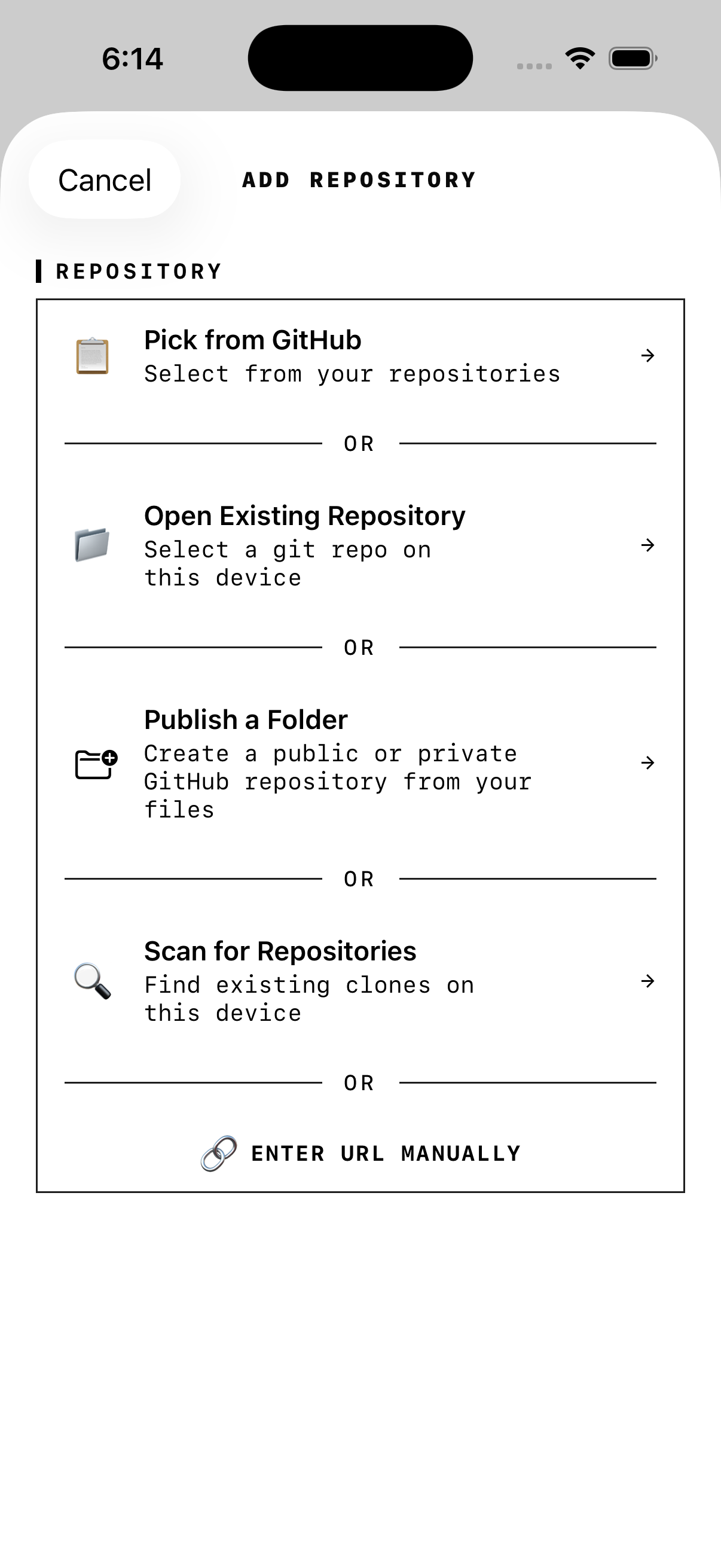
In GitSync.md, open Add Repository and tap Publish a Folder. On the next screen, tap Choose a Folder.
Navigate to your local folder in Files and select it. Choose the project folder itself, such as MyNotes, rather than the parent folder containing all your projects.
Review the files you want to publish
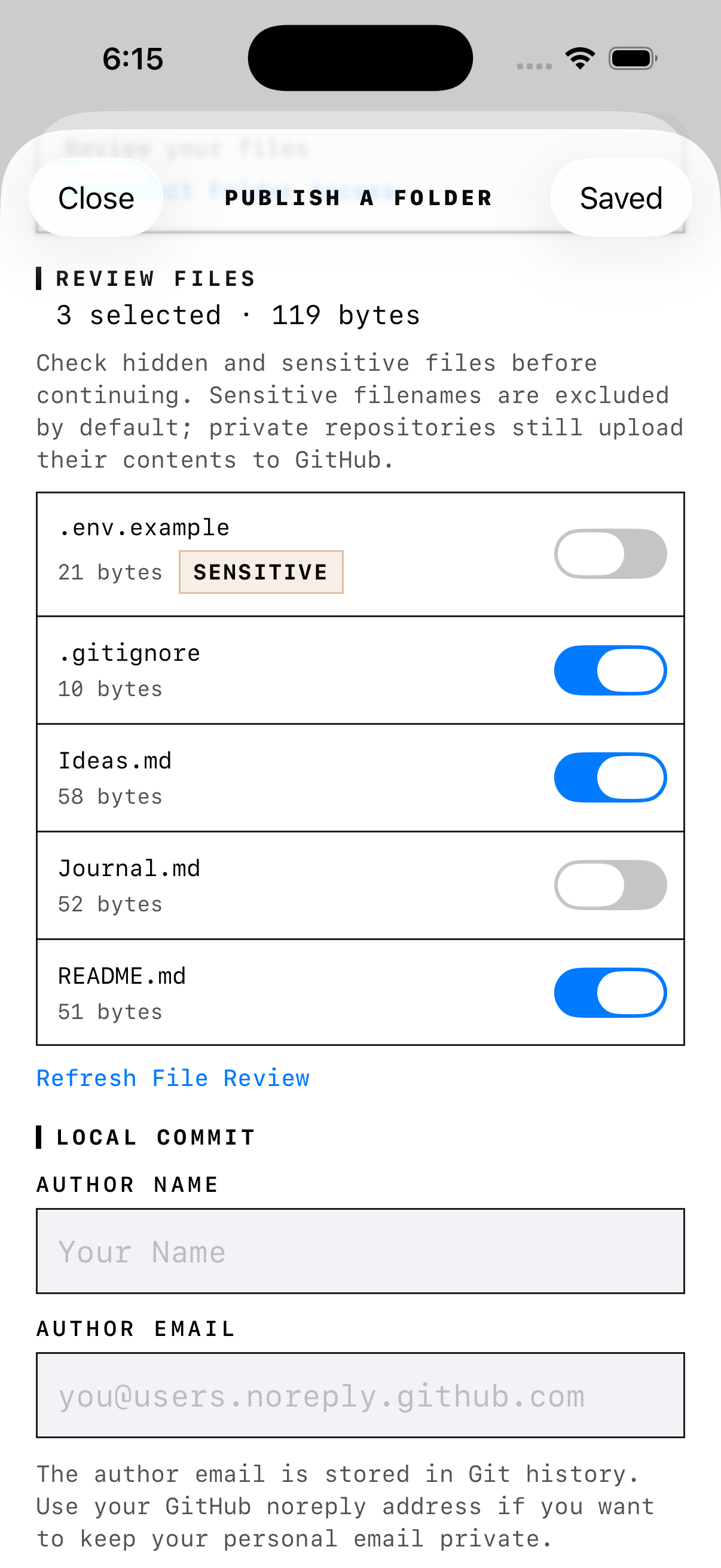
The Review Files section shows the files in your folder and the size of your selection. Check the files you want in the first commit and uncheck anything you want to keep only on your device.
Files covered by existing ignore rules stay excluded. Recognizable sensitive filenames, such as .env and private key files, start unchecked. Read the list yourself before continuing: a filename alone can’t identify every private document or credential.
Unchecked existing files stay in your folder and are also excluded from later staging on this device. New files you add afterward still need their own review or ignore rules.
If you change a file during setup, tap Refresh File Review before preparing the commit.
Set the commit author and GitHub destination
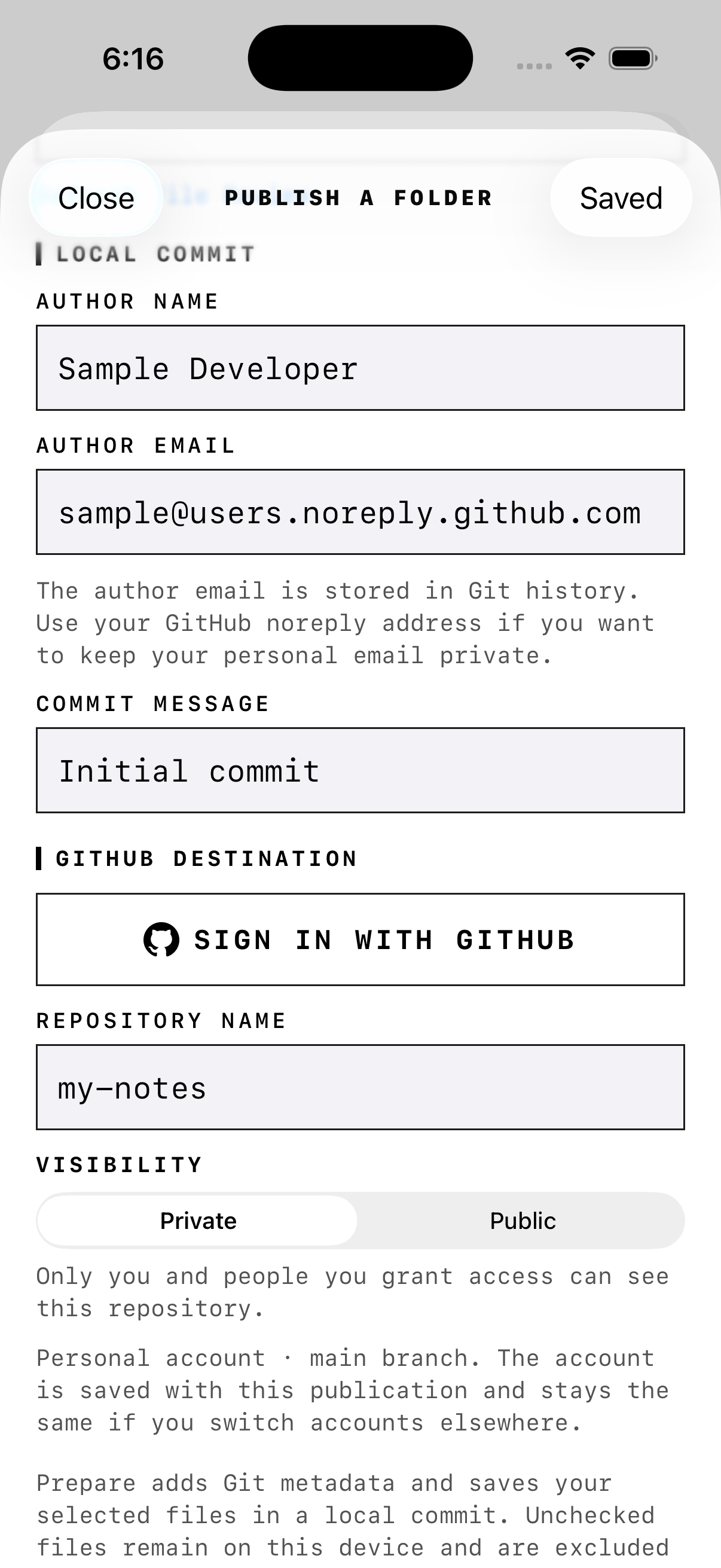
Under Local Commit, fill in Author Name, Author Email, and Commit Message. The default message is Initial commit; you can use something more specific, such as Add my notes.
Your author email becomes part of Git history. To keep your personal email private, use your GitHub-provided noreply address. See GitHub’s commit email guide.
Under GitHub Destination, choose your account and enter a Repository Name. For our example, use my-notes. Use letters, numbers, hyphens, underscores, or periods, and choose a name that isn’t already in use in that account.
Choose Private or Public
The repository starts with Private selected. Keep that choice for personal notes, or choose Public for files you want anyone to be able to see.
A private repository still uploads your selected files to GitHub. Public repositories make those files available to everyone. Check your selection and visibility together before publishing.
You can adjust visibility during review and after preparing the local commit, until GitHub repository creation begins.
Prepare the first commit locally
Tap Prepare Local Commit. GitSync.md adds a .git directory to your folder and saves the selected files in an initial commit on main.
This step uploads nothing. Your existing working files stay in place. When it finishes, the Saved Local Commit section shows the message, author, file count, and commit ID for the snapshot you’re about to publish.
Edits made after preparation aren’t included in this first upload. You can commit and push them after publication finishes.
Create the GitHub repository and publish
Check the destination account, repository name, and visibility. Then tap Create Private Repository & Publish, or Create Public Repository & Publish if you chose Public.
GitSync.md creates the new repository on GitHub, uploads your saved commit, and adds the local folder to your repository list. Keep the app open during this first upload.
When you see Folder published, use the Open … on GitHub link to view your repository. Check that the visibility is what you chose and that main contains your selected files and first commit. Tap Done to return to GitSync.md.
Keep working in the same folder
Your original folder is now a Git working copy connected to GitHub. Keep writing in your editor, then open the repository in GitSync.md to review your changes and commit and push them. Pull before editing if you’ve changed the repository on another device.
For an Obsidian vault, keep using that same local vault. If you want to run Git commands from Obsidian’s interface, follow the Obsidian Git setup guide for the plugin’s author and authentication settings.
Background Sync starts off for a newly published folder. You can keep syncing manually, or enable Include in Background Sync in the repository’s Settings when you’re ready.
If publication gets interrupted
Open Add Repository → Publish a Folder again and choose your project under Saved Progress. Resume that attempt to continue with the saved commit and destination.
The next action depends on where it stopped. You may see Resume Local Preparation, Publish Saved Commit, or Finish Adding Repository if the upload succeeded but local registration still needs to finish.
If GitHub may have created the repository before the connection was lost, tap Check GitHub. The app may ask you to confirm the matching destination before using it. If access to the original folder was lost, use Reconnect Folder Access to select it again.
Common questions
Can I publish an empty folder?
Add at least one eligible file first, such as README.md. Git tracks files, so an empty folder has nothing to commit.
Can I publish an iCloud Drive folder?
This first publication flow supports local app folders under On My iPhone. Put the files in a supported local folder and select that folder.
What if the folder is already a Git repository?
Use Add Repository → Open Existing Repository to work with it. Publish a Folder is for starting new history from a folder of files; it also checks for enclosing and nested Git repositories.
How big can the first upload be?
You can select up to 10,000 regular files, totaling 256 MiB, with each selected file no larger than 10 MiB. This flow doesn’t publish Git LFS files, symbolic links, packages, or files requiring content-conversion filters. Follow the review notes if the app identifies unsupported files.
Can I create an organization repository or publish to another Git host?
Publish a Folder currently creates repositories in personal GitHub accounts. GitSync.md’s existing clone and sync workflows support other remotes; see the self-hosted Git guide.